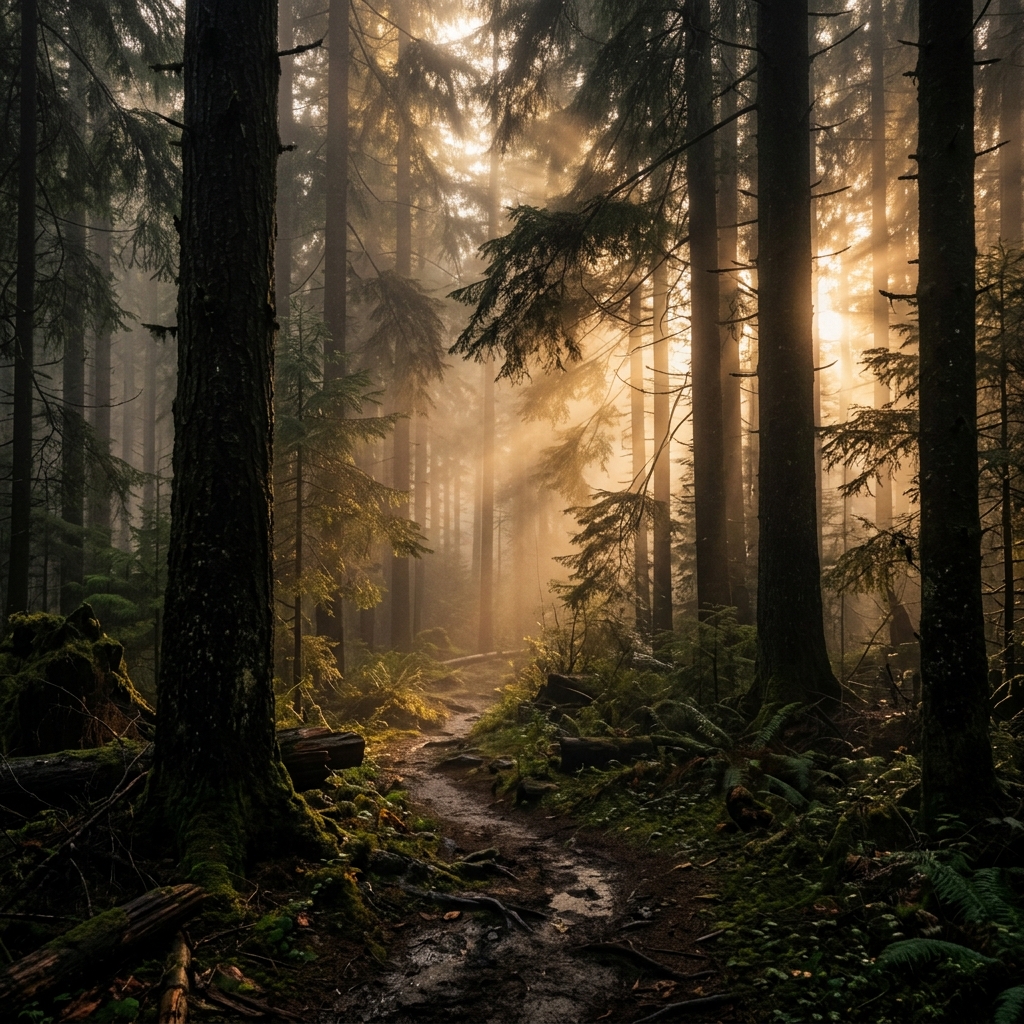
The gap between professional mirrorless cameras and smartphones has shrunk significantly. However, if you want to truly make Android photos look like DSLR shots, you cannot rely entirely on point-and-shoot automated settings. True cinematic photos require an understanding of light, exposure, and color.
In this guide, we'll break down the workflow used by professional mobile photographers to elevate their images from standard smartphone snapshots to rich, moody, DSLR-quality art.
1. Composition Over Everything
The most immediate giveaway of an amateur smartphone photo is poor composition. DSLRs force you to look through a viewfinder, encouraging careful framing. When using a phone, the large screen can make users lazy.
To fix this, turn on the 3x3 grid in your camera app. Use the Rule of Thirds to place your main subject off-center. Look for leading lines—like a winding forest path or a stream—that draw the viewer's eye into the frame. Composition establishes the foundation for any DSLR effect.
2. Take Control of Manual ISO and Exposure
DSLRs allow photographers to precisely dictate how much light hits the sensor. Default Android camera apps guess the exposure, often over-brightening the image and creating a flat, washed-out look.
By using a dedicated DSLR camera app, you can take over these settings:
- Lower the ISO: High ISO introduces digital noise (grain) and reduces color depth. Keep your ISO as low as possible (e.g., ISO 50 or 100) for clean, sharp, DSLR-like images.
- Underexpose Slightly: Smartphone sensors have less dynamic range than DSLRs. If you overexpose, you permanently lose data in the bright sky. By slightly lowering your exposure (shutter speed), you protect the highlights and create a richer, deeper image.
3. Master Custom White Balance
Auto White Balance (AWB) on smartphones is notoriously erratic, particularly in forests or during Golden Hour. It often tries to neutralize beautiful warm sunlight, turning it clinical and blue.
To get cinematic photos, manually set your white balance. Lock it to around 5500K for natural daylight, or push it to 6000K-6500K to emphasize the golden warmth of sunrise or sunset.
4. The Fake Blur Myth (And What to Do Instead)
Many users believe the only way to achieve a DSLR effect is to aggressively blur the background using their phone's "Portrait Mode" or a fake bokeh slider. While modern depth mapping is improving, artificial blur often looks unnatural, struggling around hair, leaves, or complex backgrounds.
Instead of relying on fake blur, focus on optical depth of field. Get physically closer to your subject (macro photography) and ensure your background is far away. The natural optics of modern Android lenses will create authentic, optical background separation.
5. Cinematic Color Grading with LUTs
Once you've captured the shot perfectly, color grading is what transforms it into art. Professional DSLR video and photo workflows rely on LUTs (Look-Up Tables) to map colors precisely, creating specific moods (like a teal and orange cinematic look).
Rather than slapping a generic Instagram filter on your photo, you can now import and apply professional Hollywood LUTs directly on your Android device. Apps like LeafyCam feature a real-time LUT engine, allowing you to see the color grade before you even press the shutter.
Learn how to import cinematic presets
Discover how to apply professional color grading to your mobile photos in our comprehensive LUT Guide.
6. Recommended DSLR Camera Apps
To execute these techniques, you must step away from your stock camera app. You need an application that offers manual focus, raw ISO control, RAW capture, and advanced processing.
For nature and landscape photographers, LeafyCam is the premier choice. It offers the complete suite of manual controls expected from a DSLR camera app, alongside the LeafyCam Color Grading Engine V3 that processes colors realistically, avoiding the neon-green over-saturation common in default apps.
Download LeafyCam to try these settings yourself and instantly elevate your Android photography.